Connect Moosic to your server
You've got Navidrome (or Fugue) running. Now point Moosic at it and start listening.
Open Settings
Click the gear icon (⚙) in the top-right corner of Moosic. This opens your
config.tomlfile in your default text editor.What's a TOML file?
TOML is a simple text format for settings. Each line is either a setting like
key = "value"or a section header in square brackets like[[servers]]. You don't need to know more than that; just edit the values and save.Add your server
Paste this block into the file and fill in your details:
[[servers]]
name     = "Server Name"
url      = "http://hostname"
username = "username on server"
password = "password on server"
For example, a Navidrome on your Mac at home:
[[servers]]
name     = "Home"
url      = "http://192.168.1.42:4533"
username = "anna"
password = "your-navidrome-password"
You can paste the block more than once to add multiple servers. Save the file and restart Moosic.
Pick the server in Moosic
Modern UI: click the server selector; see image below.
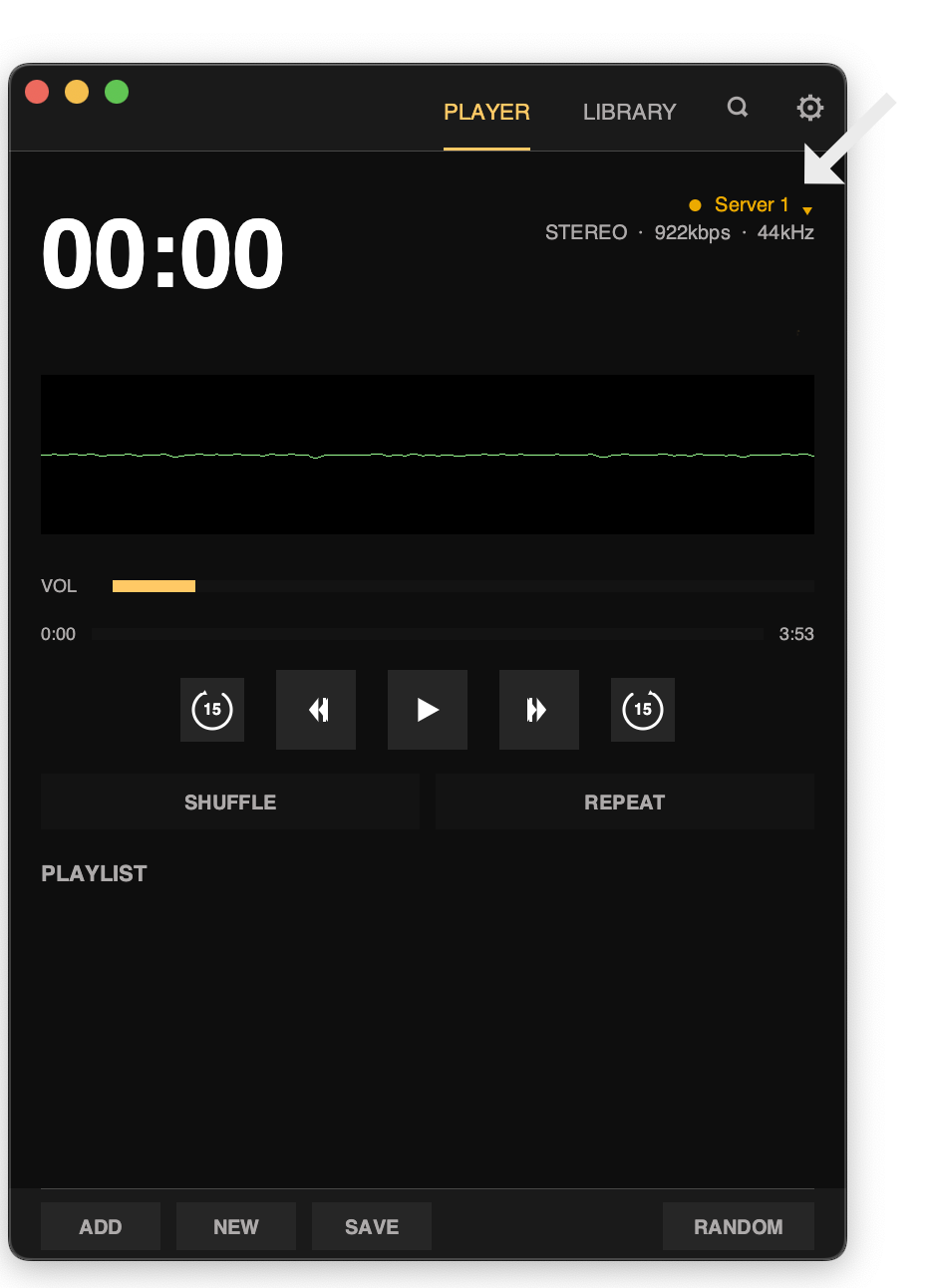
Retro UI: click the Eject button on the player to choose a server.
Where is my music actually stored now?
Still on your server. Moosic only caches cover art and a small index locally; songs are streamed on demand. Nothing is uploaded anywhere. Your library never leaves your network unless you choose to share it.
Press play
That's it. Pick an album and hit play.